
Connecting to IRC with HexChat
HexChat is a GUI desktop IRC client.
⚠️ HexChat is now discontinued, development was officially stopped in 2024.
| Feature | Support |
|---|---|
| Synchronized networks | No |
| Message history | No |
| Typing notifications | No |
| Synchronized read marker | No |
| Message search | No |
Setup
HexChat does not support synchronized networks, so each of your IRC Today networks must be added manually to HexChat.
Network setup
Create your networks first in your IRC Today dashboard, then add each of them in HexChat.
For each IRC Today network:
- Open the Network List (opens on first launch, or in HexChat > Network List)
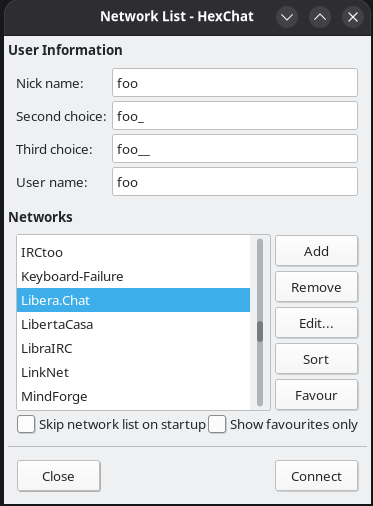
- Click on Add, and enter a name, for example
IRC Today Libera.
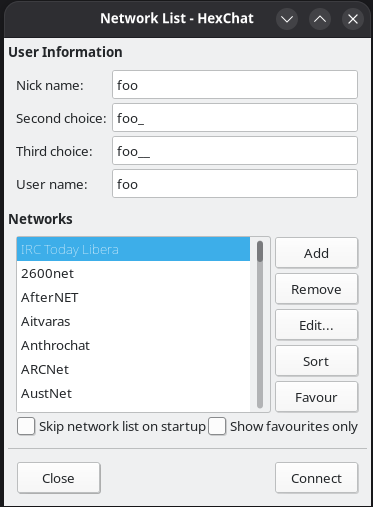
- Click on Edit to edit the network
- Click on Edit to edit the (only) server, and enter
irctoday.com/6697 - Check Connect to this network automatically
- Check Use SSL for all the servers on this network
- Uncheck Use global user information
- Set the Nick name to the Nick given on your IRC Today network page, for example
foo - Set the Second choice to the Nick given on your IRC Today network page followed by a
_, for examplefoo_ - Set the User name to the Nick given on your IRC Today network page, followed by a
/and the Network Name, for examplefoo/Libera - Set the Login method to SASL PLAIN (username + password)
- Set the Password to the Password given on your IRC Today network page
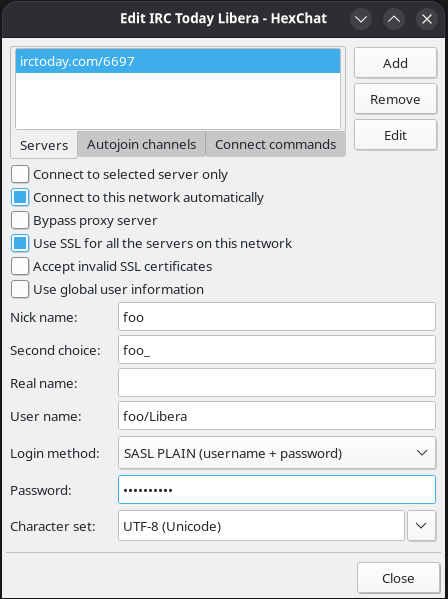
- Click on Close
- Click on Favour
- Click on Connect
- HexChat should now connect to the network
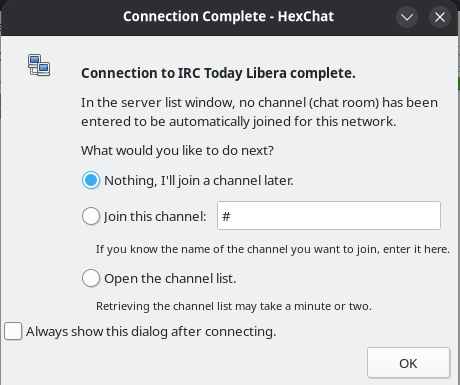
- If a popup asking for which channels to join is shown:
- Select Nothing, I’ll join a channel later.
- Uncheck Always show this dialog after connecting.
- Click on OK
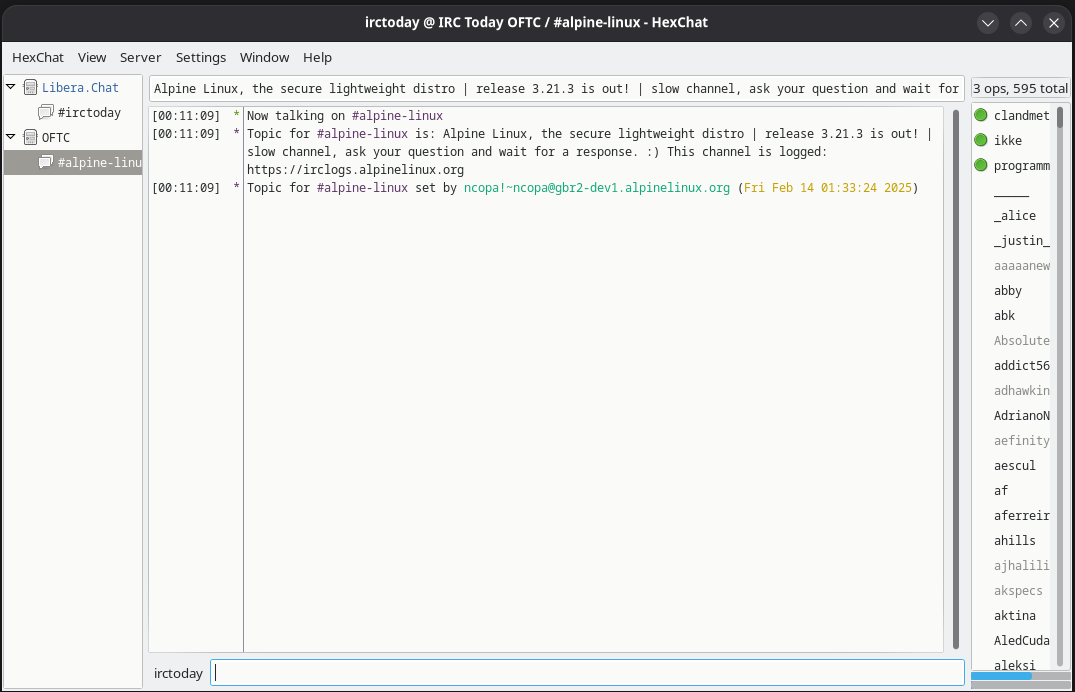
For example, after adding two networks, HexChat should look like this:
Additional setup
To improve compatibility with IRC Today, run once (in the message box):
/set irc_reconnect_rejoin off
/set net_throttle off